Pyramid queries SAP HANA views directly, meaning that users connect to the SAP data source directly, rather than copying the data into Pyramid and configuring a Data Flow (ETL).
When launching a new discovery, you can do either of the following:
- Select your SAP HANA server to connect to existing HANA views and use them as data models directly.
- Select data models that have been built in Pyramid's Model component and loaded into the SAP target.
Direct Query
All SAP HANA views are queried directly; there is no need to configure a data model for SAP HANA in Pyramid, although the user can do so if required. In this case, the user might choose to build a 'pass-through' Pyramid model on HANA; if so, Pyramid will query the underlying data source directly. Pyramid Modeling also allows model-builders to create models and mash ups; in some scenarios, these models may also be direct query pass-through data sources.
Direct querying of the HANA source has several advantages:
- Your queries are based on up-to-date data, as the source is queried directly, rather than Pyramid querying a copy of the data.
- Time is saved by avoiding the need to build and update models in Pyramid.
- System resources are preserved by avoiding the need for scheduled reprocessing of data models.
- Data security and governance is maintained by eliminating the need to copy data from the source into Pyramid.
Note: Parameterized System Views are not currently supported.
Opening SAP HANA in Discover
To open the Model after launching Discover Pro, work through the panels on the New Discovery page:
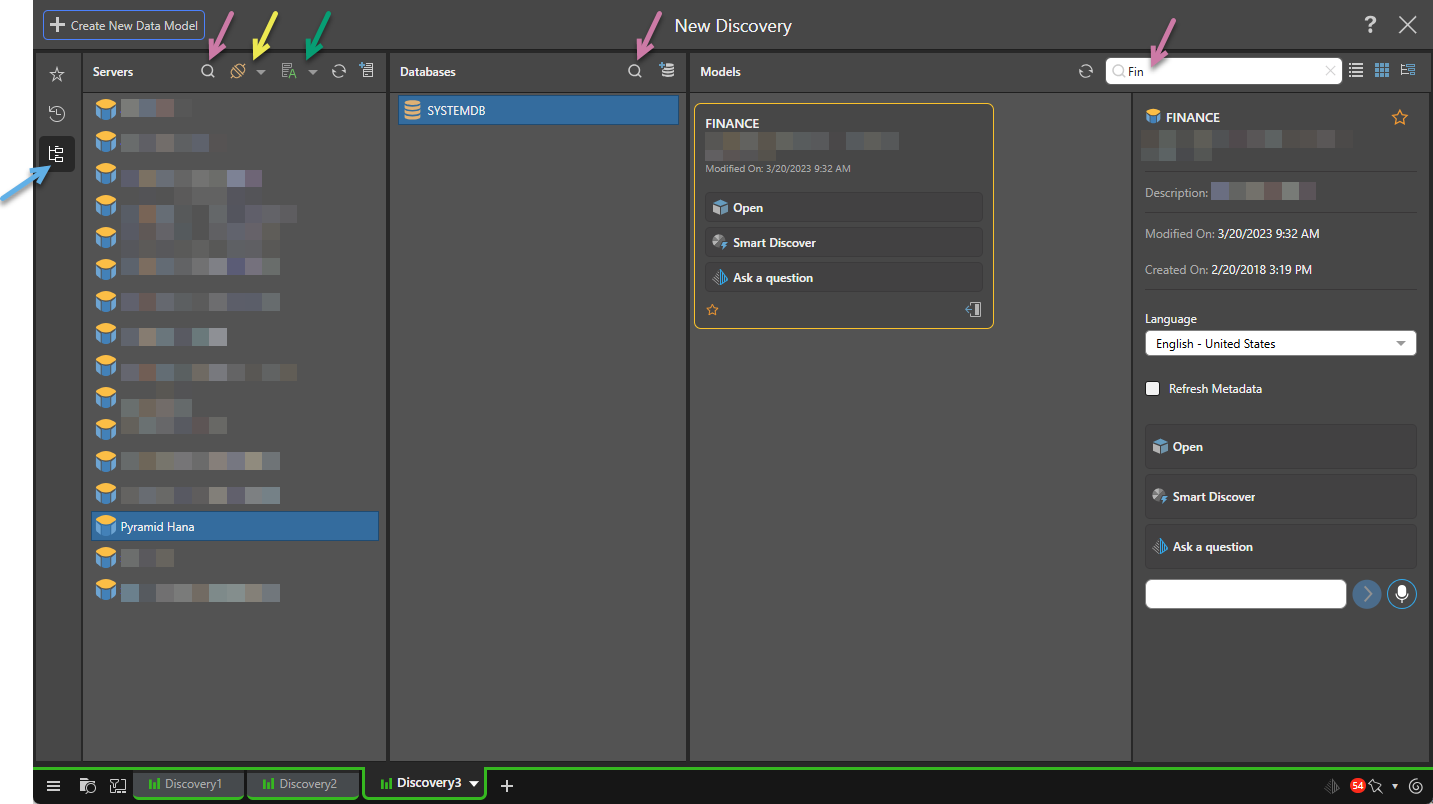
- Select Explorer (blue arrow above) in the toolbar.
- In the Servers column, find and select the server:
- Use Search (purple arrow, above) to filter servers by name.
- Use the Type dropdown list (yellow arrow) to filter the server list by type.
- Use the Sort dropdown list (green arrow) to arrange the servers by name, type, or to arrange the list by folder. The folder name is created when the data source is created.
- In the Databases column, select the required database within the given server:
- Use Search to filter databases by name.
- In the Models column, select the data model that you want to query:
- Click Refresh to refresh the list of data models.
- Use Search to filter data models by name.
- Use the buttons to view the data models in a List view, Tile view, or Tree View.
- Open the data model.
Tip: You could, alternatively, use the Favorites or Recents options if your Model is marked as a favorite or has been used recently.
Note: The filter and sort selections are saved within the session, so any subsequent visual will default to your sort and filter selections.
Tip: Hover your cursor over the server to see the server name, type, and description as a tooltip.
Adding new Servers and Databases
Depending on your access rights and selected server type, you may be able to use Quick Model to create a new server or database on the fly:

- In the Servers column, click Add New Server (orange arrow above) to create a new server.
- In the Databases column, click Add New Database (blue arrow) to add a new database to your selected server.
- Click here for more information about Quick Modeling
Models panel
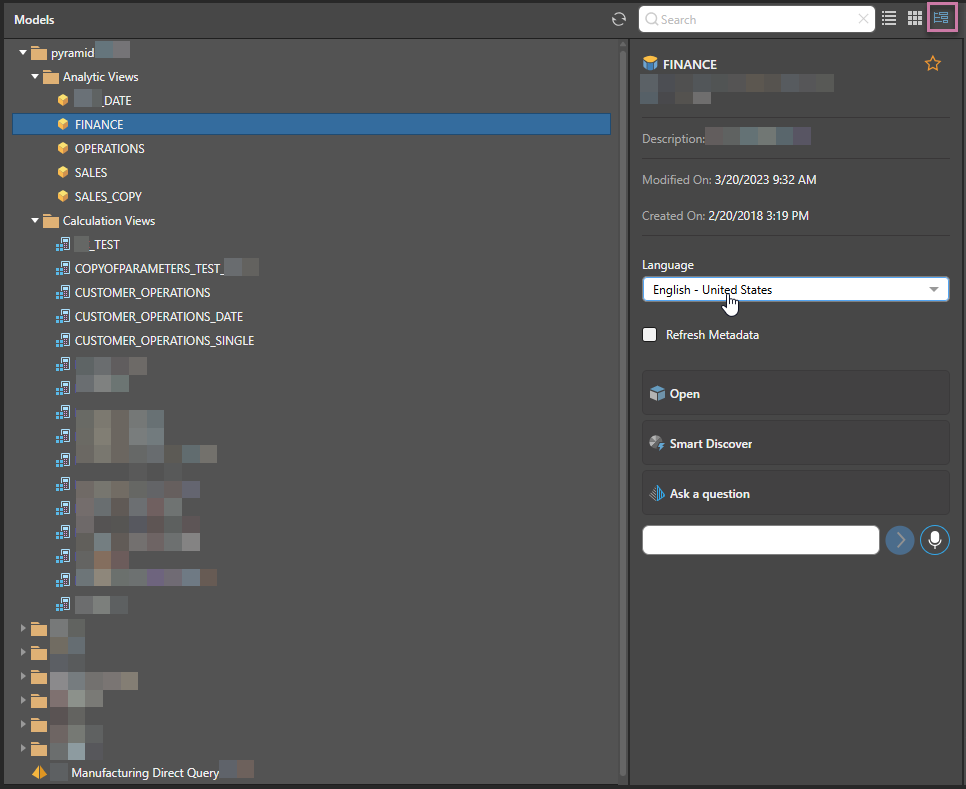
As with other data sources, data models can be viewed in the Tile view, List view, or Tree view. Since HANA models are often represented in a hierarchical tree, the tree view is useful for separating out the various types and schemas.
Open
Click Open to launch a new discovery for the selected SAP model.
The different views are denoted by the following icons:
 - Cube icons for Analytic Views.
 - Calculator Icons for Calculated Views.
 - Standard Pyramid model icon for Pyramid Models.
SAP Parameters
When you launch a new discovery for a SAP model that contains parameter configurations, the Define Model Parameters dialog automatically opens. This dialog shows parameters that have been defined in the data source so that you can configure them for Pyramid. Once configured, they appear in the Dimensions panel when the model is opened and can be added to queries.
- Click here to learn more about SAP Parameters
Smart Discover
Click Smart Discover to launch Smart Discover and build a discovery for this model. Smart Discover is an AI-driven tool that helps non-technical users to build analytical content using augmentation engines and heuristics. It offers users the simplest method for building data visualizations in Pyramid through a simple point-and-click wizard.
- Click here for more information about Smart Discover
Auto Discovery
Click Auto Discovery to auto-analyze your data and produce a set of machine-built analyses and visualizations. When working with SAP HANA, Auto Discovery is only available for Pyramid models.
- Click here for more information about Auto Discovery
Ask a question
Click Ask a question to create a discovery using a natural language prompt. When working with SAP HANA, Ask a Question may not be available from the New Discovery page. It is only available for Pyramid models or models that do not contain any parameter configurations (SAP parameters).
- Click here for more information about Accessing NLQ
Tip: Where this option is not available, you may still be able to access other Natural Language Querying (NLQ) options (Chatbot and Type a question) within Discover.
Views
As usual, there are three ways to view SAP HANA models when launching a new discovery: Tile view, List view, and Tree view.
Like other models, when a SAP HANA model is selected (not opened, clicked in this view), the Information Panel (to the right of any of the views) displays model metadata, which can be refreshed and offers options to Open the model as described above.
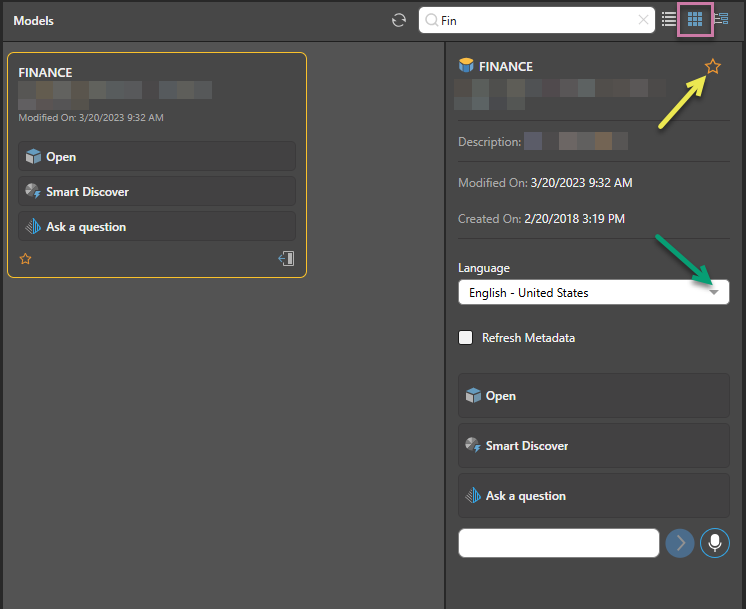
Tile View
The Tile View (purple highlight below) displays a large tile for each Pyramid model, cube, or calculated view.
List View
The List View (purple highlight below) displays the list of models and views, with the metadata displayed in dedicated columns: Name, Created On, Modified On, and Version. Hover over a column to show sort and filtering icons.
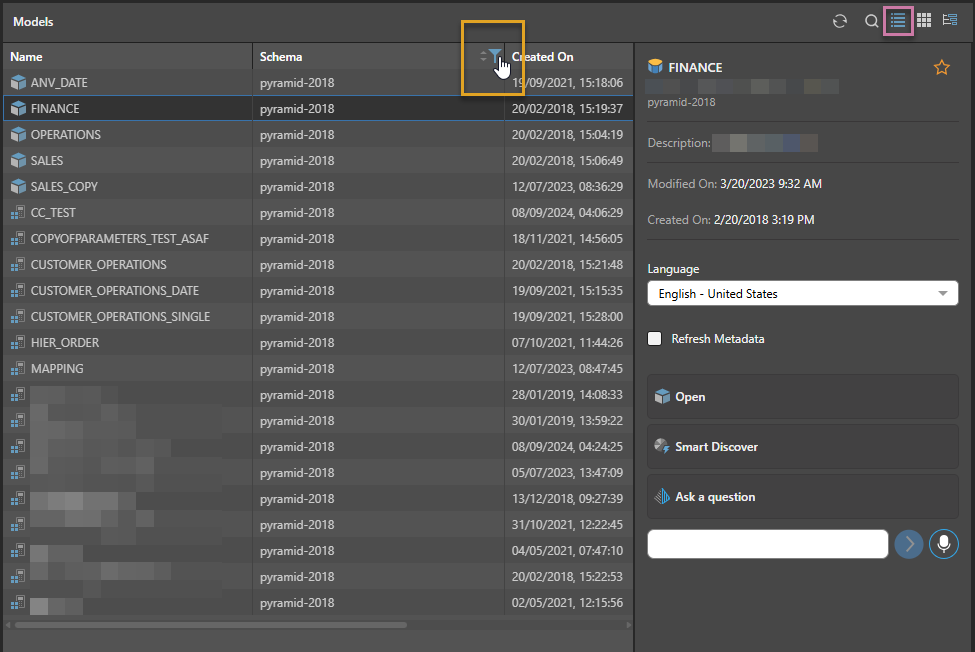
Sort and Filter
Hover over the column headers to access the sort and filter tools (orange highlight):
- Sort the column by ascending or descending order.
- Filter the column to show only some values in the column. The filter options depend on the data type of the value in the selected column.
Tree View
The Tree View (purple highlight below) organizes the various views into folders and sub-folders.
Model Metadata panel
When a model is selected (but not opened) in any of the previous views, an Information Panel displaying the model's metadata automatically appears on the right as the fourth panel. It displays the model name, location, creation date, and description. From this panel you can:
- Click the Star icon to add the model to your favorites or remove it from your favorites, depending on its current state.
- Use the Choose Language dropdown list to choose a language to display hierarchies, members, and models in. The language list has been set in the database.
- Select the Refresh Metadata checkbox to refresh the model.
- Open the selected model in Discover Pro, Smart Discover, or the NLQ (Ask a question).